
Eloqua Blog · Training
Eloqua Training 2.0: Eloqua Blind Form Submit
A practical walkthrough for using an Eloqua blind form submit link to trigger form processing steps from a CTA click.
📅 First published: Jun 6, 2021
⏱ Reading time: 11 minutes • 👤 Author: Greg Staunton • 🎯 Focus: Eloqua forms, processing steps, blind submit URLs
Need The Generator?
Open the rebuilt Eloqua Blind Form Submit Tool in another tab while you follow this tutorial.
Open the toolI quite often get asked during implementations for functionality over and above normal email clickthroughs. Sometimes a button in an email or on a website needs to do something more useful: update a contact record, create a lead, trigger a campaign step, notify sales, or write to a custom object.
Oracle Eloqua blind form submits are seriously handy for this. They have been around for years, but in my experience they are still not used to their full potential.
What Is An Eloqua Blind Form Submit?
An Eloqua blind form submit is a special URL with pre-set variables for form fields. When someone clicks the URL, Eloqua processes the form behind the scenes and runs the form processing steps.
At the click of a CTA, you can set a custom object with the user's information, update their contact or account record, create a lead in your CRM, add them to a campaign, or notify their assigned sales rep.
In this tutorial, the basic scenario is a button in an email that passes the contact into a callback queue and adds them to a campaign.
Barebones Example
http://s25071713.t.eloqua.com/e/f2.aspx?elqFormName=Campaign_Callback_Form&elqSiteID=25071713&emailAddress=<span class=eloquaemail>EmailAddress</span>&Callback=YesYour values will change, but the shape is the same: form name, site ID, email address merge field, and whatever static values you want to submit.
How The URL Is Built
The red bits in the original tutorial were the values you need to change: your Eloqua site ID, the Eloqua HTML form name and the HTML names of the form fields you want to submit.
The green bit is the Eloqua email address merge field. It works like a normal field merge in an email. When the email sends, Eloqua inserts the contact's email address into the URL.
The orange bit is the static value you want to pass back to Eloqua. In a callback example, the field might be Callback and the value might be Yes.
http://s[siteID].t.eloqua.com/e/f2.aspx?elqFormName=[FormName]&elqSiteID=[siteID]&emailAddress=<span class=eloquaemail>EmailAddress</span>&[TrackedField]=[StaticValue]Step 1: Get Your Eloqua Site ID
To start, you need your Eloqua site ID. The form processing URL is the same pattern for everyone, but the site ID tells Eloqua which instance owns the form.
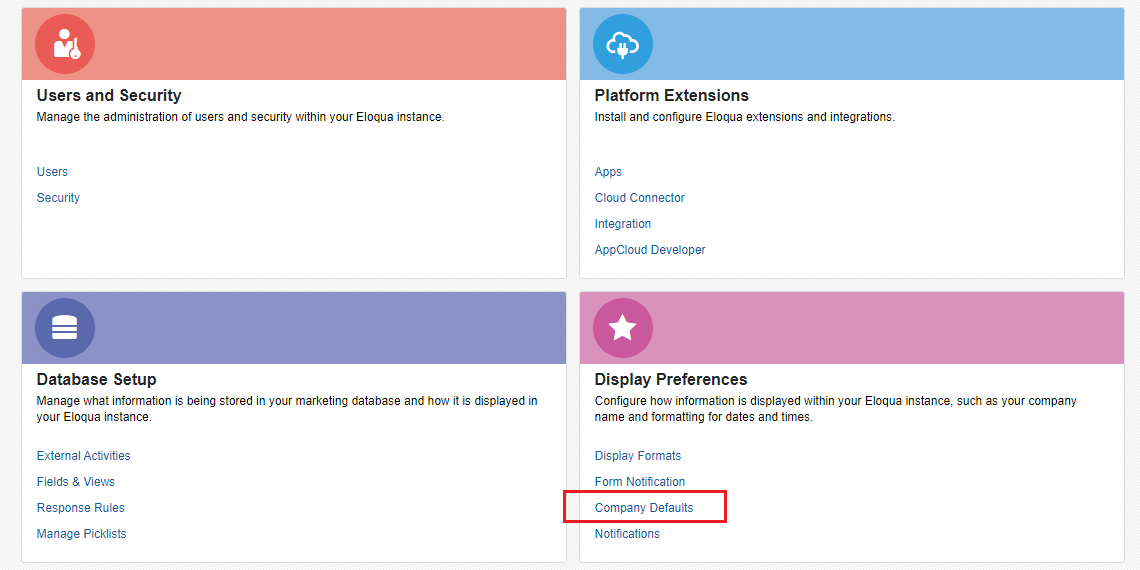
In Eloqua, go to Settings, then Company Defaults. You will find your Eloqua Site ID there.

Step 2: Set Things Up In Eloqua
To create a blind form submit link, you need three things:
- A form in Eloqua with fields for all the data you want to collect. The form does not need to be on a landing page.
- A landing page that the contact will be redirected to after the form is submitted.
- A basic text editor, such as Notepad.
If you want to send people to your own website, I still recommend redirecting first to an Eloqua landing page and then using a small redirect script from there. Some websites do not accept Eloqua's form processing redirect cleanly from a blind submit.
window.location.href = "https://www.example.com";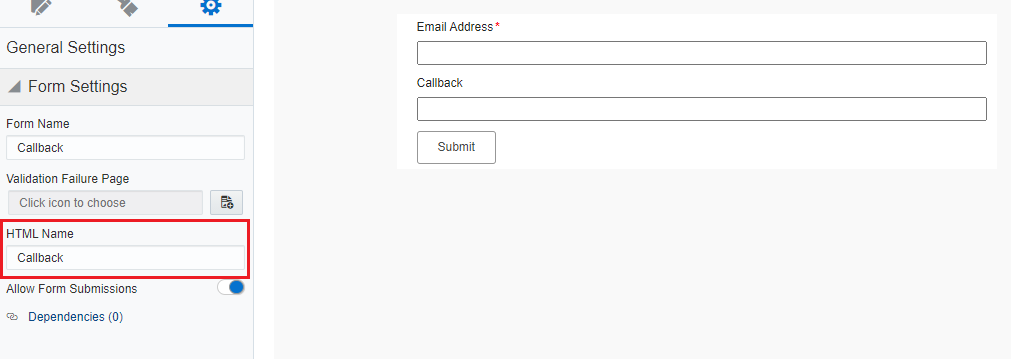
Step 2b: Create The Eloqua Form
Go to Assets, then Forms. Give the form a useful name such as CallBack, or whatever matches the purpose of your blind form submit.
Add a contact field for the email address. On the Field Settings tab, make sure the HTML name is emailAddress. Then add custom fields for the other data you want to collect.
Tip From The Top
Each blind form submit link tracks a single value for each field. If contacts need different choices, create multiple links. For example, an RSVP field with Yes and No needs two separate blind submit URLs.
Processing Steps
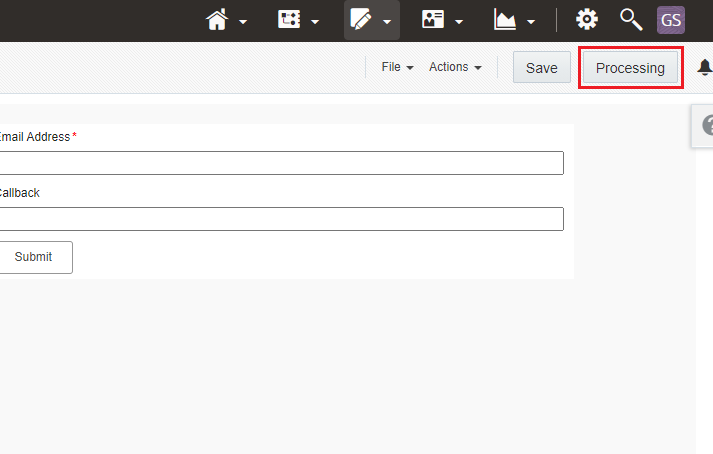
Go into Processing Steps at the top right of the form. This is where the fun starts: you can update contacts, update accounts, set custom object data, add campaign actions or send notification emails.
For this tutorial, keep it simple and send contacts to a thank-you page using Redirect to Web Page. Add the processing step, choose Send to an Eloqua Landing Page, and select the landing page you configured.
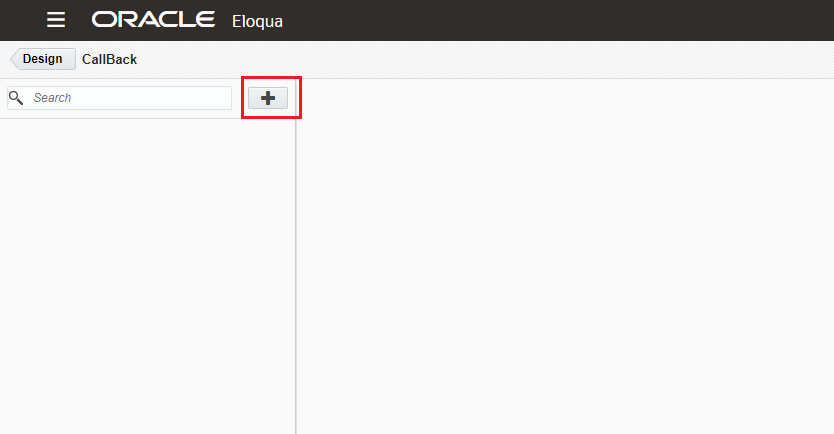
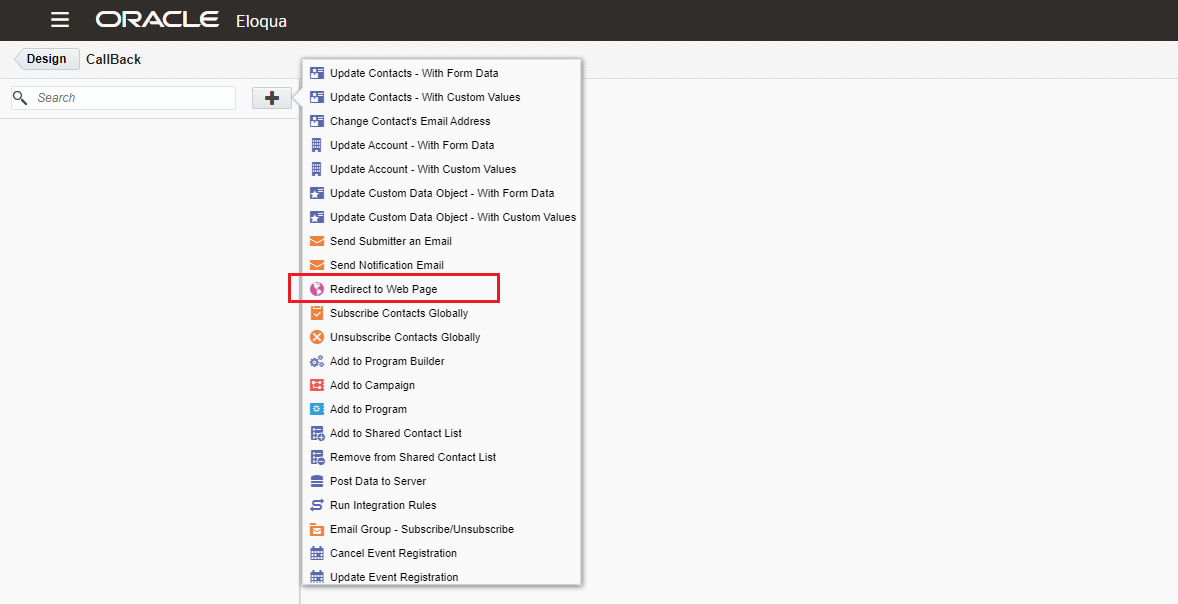
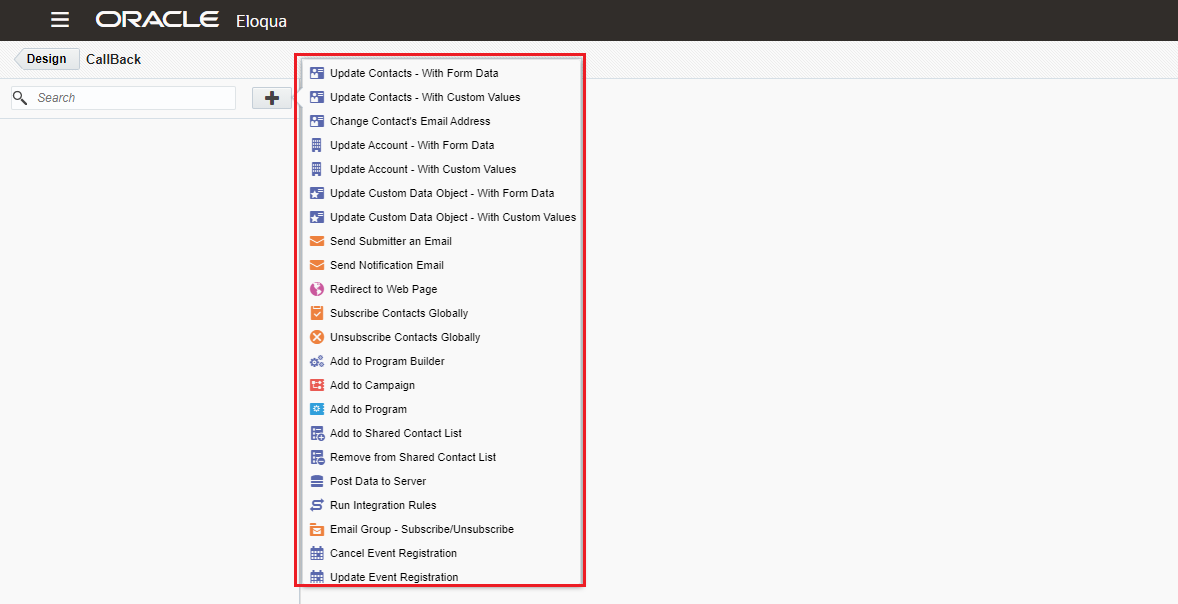
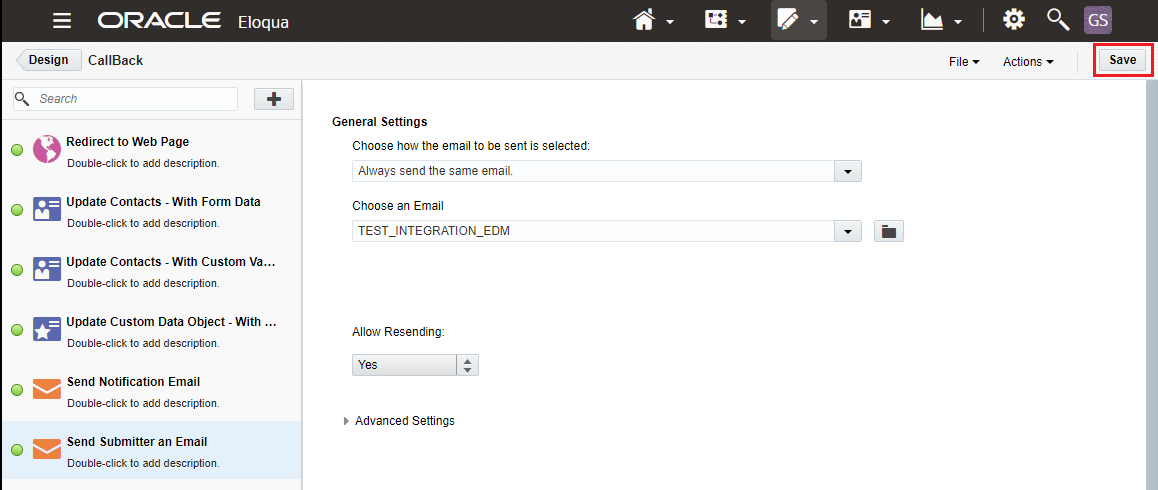
Add any other processing steps you want to execute when the contact clicks the blind form submit link. For example, add the contact to a campaign, change campaign status, add them to a shared list, or send a notification to sales.
Step 3: Build The Blind Form Submit
- Open a text editor.
- Paste in your Eloqua site ID.
- Get the HTML form name and HTML field names from the Eloqua form builder.
- Paste the URL pattern below and replace the placeholders.
http://s[siteID].t.eloqua.com/e/f2.aspx?elqFormName=[FormName]&elqSiteID=[siteID]&emailAddress=<span class=eloquaemail>EmailAddress</span>&[TrackedField]=[StaticValue]- Replace the two instances of [siteID] with your site ID.
- Replace [FormName] with your HTML form name.
- Replace [TrackedField] with the HTML name of the field you want to track.
- Replace [StaticValue] with the value you want to submit.
- Add extra field/value pairs to the end of the URL if needed.
- Create additional blind form submit links for alternate field values.
- Add the blind form submit links to your email like any other link.
The email address is dynamically included with a field merge when you send through Eloqua. If a contact forwards the email and someone else clicks the link, it will look like the original contact submitted the form again. If that matters, tell contacts that the link is unique to them.
Summary
Now you know the theory behind Eloqua blind form submits. Build the form, configure the processing steps, construct the URL carefully, and test it before it goes anywhere near a live campaign.
The rebuilt blind form submit tool can create the URL for you once you know your site ID, form name and field values.
Go to the Eloqua Blind Form Submit ToolRelated tool
Eloqua blind form submit tool
Use the companion generator to create a blind form submit URL without hand-assembling the query string.
Read articleRelated article
Google Analytics tracking on Eloqua forms
A companion article for tracking form activity and keeping attribution clean.
Read article